Add a meeting
Paste a transcript, upload a file or import from your notetaker.
Click New meeting at the top of the sidebar. There are three ways to bring a meeting in: paste it, upload a file, or import it from your notetaker. If you would rather not do this by hand at all, see Import meetings automatically.

Paste a transcript
- Copy the transcript from your notetaker, video call or notes.
- Paste it into the box. The word count shows in the corner.
- Click Start, or press ⌘ Enter (Ctrl Enter on Windows).
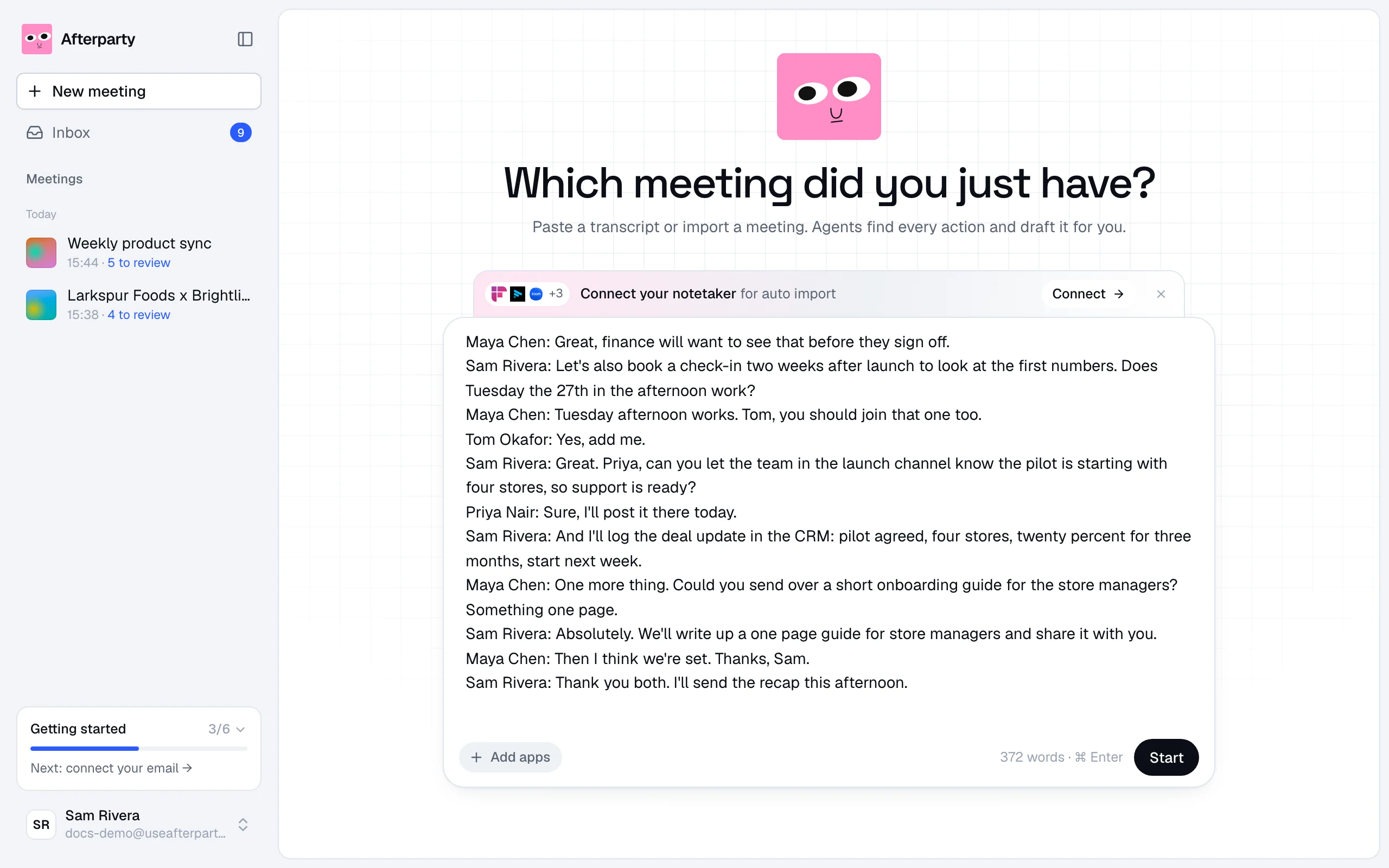
Transcripts with a name before each line (Maya Chen: Sounds good.) work best, because the agents can see who promised what. Meeting notes without names work too, the agents just have less to go on.
Upload a file
Drag a .txt, .vtt or .srt file onto the box. It shows up as a chip; click its cross to remove it. Most notetakers and video tools can export one of these. A file can be up to 3 MB, and a transcript up to about 60,000 words.
Import from your notetaker
Once a notetaker is connected, the box says import a meeting. Click it to see your meetings from the last two weeks, newest first, and click Import on the one you want. If you have more than one notetaker, switch between them with the tabs at the top. A meeting you already imported says Open instead.
Importing by hand works on every plan, including Free.
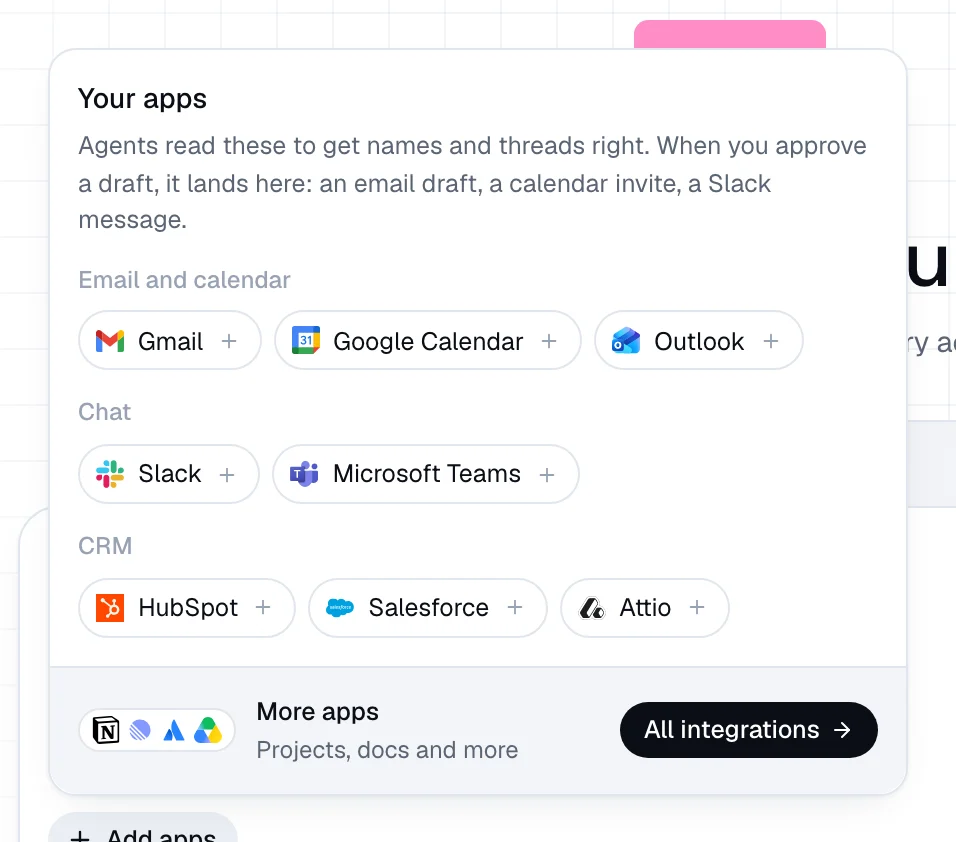
Add apps for sharper drafts
Next to the box, Add apps shows the apps that matter most for drafts: email, calendar, chat and CRM. Connect one with a click. The agents use it from your next meeting on.