
Import meetings automatically
Let meetings come in by themselves when the recording is done.
Connect your notetaker once and every new meeting comes into Afterparty by itself. The agents get to work, and the drafts are waiting when you are back at your desk. Pro and Max
Turn on auto import
- Open Setup from the account menu in the bottom left corner.
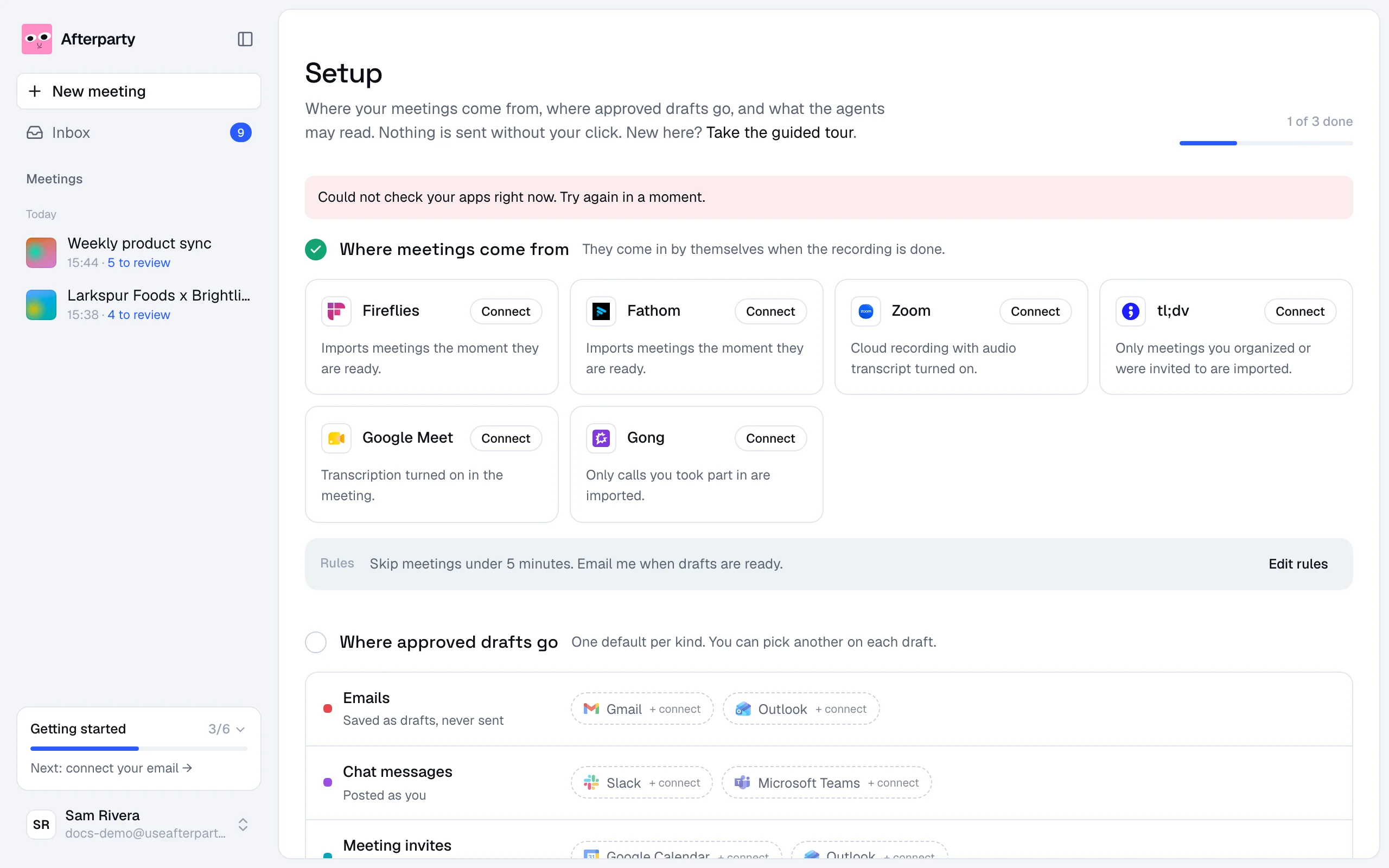
- Under Where meetings come from, click Connect on your notetaker and sign in.
- Make sure the switch on its tile is on. It turns on by itself when you connect.
- Leave Run the agents right away checked to have every meeting drafted as soon as it comes in. Uncheck it to have meetings wait until you click Run agents on them.
When meetings come in
| Notetaker | Comes in | Good to know |
|---|---|---|
| Fireflies | As soon as the transcript is ready | |
| Fathom | As soon as the transcript is ready | |
| Zoom | As soon as the transcript is ready | Needs cloud recording with the audio transcript turned on. |
| tl;dv | Checked every hour | Only meetings you organized or were invited to. |
| Google Meet | Checked every hour | Needs transcription turned on in the meeting. |
| Gong | Checked every hour | Only calls you took part in. |
Choose which meetings run
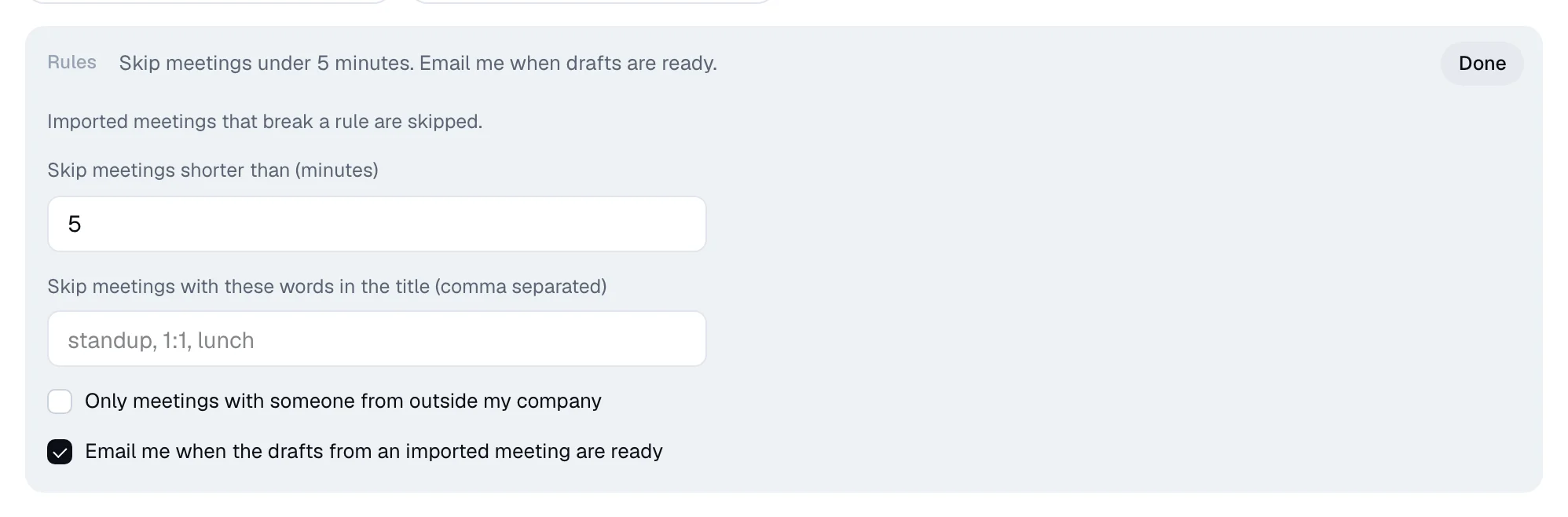
Not every meeting needs an afterparty. Click Edit rules under the notetakers to skip the ones that don't:
- Skip meetings shorter than a number of minutes.
- Skip meetings with these words in the title, such as standup, 1:1, lunch.
- Only meetings with someone from outside my company, for client and sales calls.
- Email me when the drafts from an imported meeting are ready.
On the Free plan
You can still connect your notetaker on Free and import any meeting from the last two weeks with one click in the new meeting box. See Import from your notetaker.